
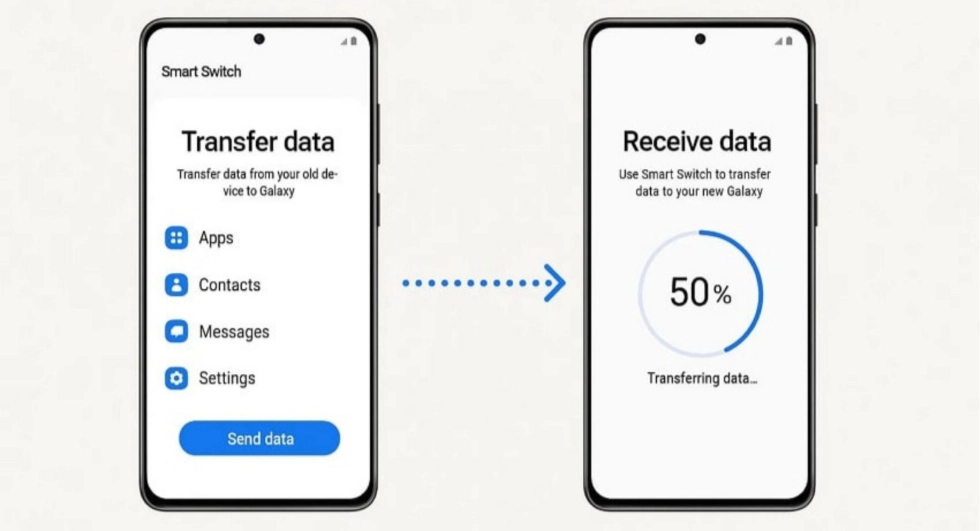
Got a new phone? Congratulations! One of the first things you will want to do is move everything from your old device, contacts, photos, messages, apps, and settings, onto your new one. The good news is that most of the latest operating systems make this easier than ever. Here is a simple, step-by-step guide to get all your data across safely.
Before You Start: Prepare Both Phones
A little preparation makes the whole process smoother.
- Charge both phones. Data transfer can take anywhere from a few minutes to over an hour depending on how much you have, so make sure both devices are charged above 50% or plugged in.
- Connect to Wi-Fi. A stable Wi-Fi connection is faster and saves your mobile data.
- Back up your old phone first. Always back up before transferring, just in case. On Android, back up to your Google Account; on iPhone, back up to iCloud or a computer.
- Have your passwords ready. You will need your Google or Apple ID login details on the new phone.
Transferring Between 2 Android Phones
Most Android phones include a built-in transfer tool that makes this simple.
- Step 1: Turn on your new phone and start setup. When you power on the new device, the setup wizard will ask if you want to copy data from another device. Tap “Yes” or “Copy apps & data.”
- Step 2: Connect the two phones. You will usually be prompted to connect them with a cable (often included in the box) or wirelessly. Follow the on-screen instructions to link them.
- Step 3: Sign in to your Google Account. This restores contacts, calendar, and app data tied to your account automatically.
- Step 4: Choose what to transfer. Select the items you want, contacts, photos, videos, messages, apps, and settings, then confirm.
- Step 5: Wait for it to finish. Keep both phones close together and connected until the transfer completes. Your apps will continue downloading in the background afterward.
Manufacturers also offer their own apps for a fuller transfer, such as Samsung Smart Switch for Samsung phones, which even move data from an iPhone.
Transferring Between Two iPhones:
Apple’s “Quick Start” makes iPhone-to-iPhone transfer effortless.
- Step 1: Place your old iPhone next to the new one. Turn on the new iPhone and a “Quick Start” screen will appear on your old device.
- Step 2: Scan the animation. Use your old iPhone to scan the pattern shown on the new iPhone’s screen to link them.
- Step 3: Restore from iCloud or transfer directly. Choose to restore from your latest iCloud backup, or use “Transfer Directly” to move data phone-to-phone.
- Step 4: Sign in and wait. Enter your Apple ID, keep both phones nearby, and let the transfer complete.
Transferring From iPhone to Android (or Android to iPhone):
Switching between platforms is also easy:
- From iPhone to Android: Use your new Android phone’s setup wizard, which includes an option to transfer from an iPhone via cable, or use Samsung Smart Switch on Samsung devices. You can also install the Google Drive app on your iPhone and back up contacts, photos, and calendar, then sign in with the same Google Account on your Android.
- From Android to iPhone: Download Apple’s “Move to iOS” app on your Android phone, then follow the prompts during your new iPhone’s setup to transfer contacts, messages, photos, and more.
Don’t Forget These Extras
Some things need moving manually:
- WhatsApp chats: Use WhatsApp’s built-in chat backup (to Google Drive on Android or iCloud on iPhone), then restore it when you set up WhatsApp on the new phone. Note that transferring WhatsApp history between Android and iPhone requires WhatsApp’s dedicated move feature.
- Bank and authenticator apps: These often need to be set up fresh for security. Have your login details and any two-factor authentication ready.
Physical items: Move your SIM card and microSD card (if your new phone supports one) across.
Final Tip: Don’t Wipe Your Old Phone Too Soon
Once the transfer is done, take a day or two to make sure everything is on your new phone, check your contacts, photos, WhatsApp, and important apps. Only once you are certain everything is there should you factory reset your old device (especially before selling or giving it away) to protect your personal data.
Need a Hand?
Setting up a new phone should be exciting, not stressful. If you have just bought a new device from Phones and Tablets Kenya, our team is happy to help you transfer your data and get set up. Call or WhatsApp +254 716 690990, and browse our latest phones and accessories at Phones and Tablets Kenya, Nairobi CBD, with countrywide delivery across Kenya.